
Category
2. Facilitate retrospectives (6 Article)
All information for new moderators of retrospectives in Echometer (team admins)
Timeboxing in the retrospective
Does your team regularly take longer than planned to complete retrospectives and you’re wondering how to improve time management?
Here are our tips:
- Communicate to the team ahead how much time is available and ask if everyone is willing to fully commit to the retro during that time period.
- If possible, start prioritizing the feedback halfway through the time. This leaves enough time after the prioritization to start analyzing the most important topics and defining action items.
- If topics threaten to break out of their time slot, use the timer in the retro to set a time box for the topic. The countdown is then visible to all participants in the retro and lights up red when it expires:

Define & track action items
Are you wondering how your team can come up with useful action items and how you can track them with Echometer?
On the subject of action items in retrospectives, we have one blog article with some tips and examples summarized for you. Check it out!
The phases of a retrospective
The retrospective in Echometer follows the classic steps from the textbook:
- Check in
Help your team get settled at the meeting and make sure everyone gets a chance to speak briefly. - Data gathering
Gather the feedback and make sure everyone has an equal understanding of the feedback without getting into too much detail, or deriving actions yet. - Prioritization
Let the team decide which topics should be discussed further in the retro. - Analysis & definition of action items
Create a space to further analyze the prioritized issues and derive actions. - Check out
Summarize the results and get feedback from the team on the retrospective.
Furthermore, Echometer includes the step “Review existing measures,” which, depending on your settings, you can place before or after “Collect feedback.”
To better understand the concept of how a retrospective works, we recommend our Blog article on the “5 Diamond Model”.
Tip: You can use whiteboards (bottom right menu) to flexibly break out of the format and insert creative workshop formats. You can prepare whiteboard templates in advance of the retrospective and then use them:

Understand team health rotation
We believe that the “Spotify Health Check” is not the only correct way to measure team health. Rather, the topics of the Health Check should be adapted to the needs of the team.
This is exactly what the team health rotation in Echometer is for. The items marked in the item pool are included in the rotation and end up in the survey drafts in turn. This way you collect feedback on the items in turn.
To customize the rotation, select the items you want to include in your health check in the item pool. Use the search bar and the templates (top right of the search bar) to find matching items. If you don’t find what you are looking for, you can add your own items using the button below the list:

Edit surveys & send them to the team
Want to get feedback from your team before the retrospective to save time in the retrospective and give team members enough time to think?
With Echometer, you can easily set up surveys for your team and benefit from automatic team health rotation. You can also get inspiration from the templates for the open questions.
Both the items from the rotation and the open questions from the templates can be edited individually.
The survey is automatically sent to all team members via email. You can also copy the survey link manually from the team page.

Use whiteboards & whiteboard templates
Whiteboards in Echometer
Please note that there are different types of whiteboards in Echometer:
| Whiteboard type | Description |
| Whiteboard templates | - are designed to be prepared once and then reused more often |
- Can be created by users and inserted by the creators in any retro (or retro preparation)
- When used, they are copied to a “Retro Whiteboard” so that the template itself remains unchanged | | Retro whiteboards | * Have been used as part of a retrospective
- Can be viewed in the retro archive after a retrospective
- Can still be edited after the retro (for example, for break-out sessions outside the retrospective) | | Prepared retro whiteboards | - Are also “Retro Whiteboards” that were created specifically for the upcoming session as part of the retro preparation before the retrospective
- Can still be opened and edited in the retro archive (even if they were not used in the retro itself)
- Are only saved to the retro and are therefore not saved as a reusable whiteboard template |
Whiteboard templates
In the sidebar on the left you will find the “Whiteboard Templates” tab. Here you can either take a look at the whiteboard templates provided by Echometer (see explanation of the templates here) or create your own templates:

Retro whiteboards
Prepared retro whiteboards
As part of the preparation for a retrospective, you can also prepare whiteboards. To do so, you can either use a whiteboard template and adapt it, or open a new, empty whiteboard:
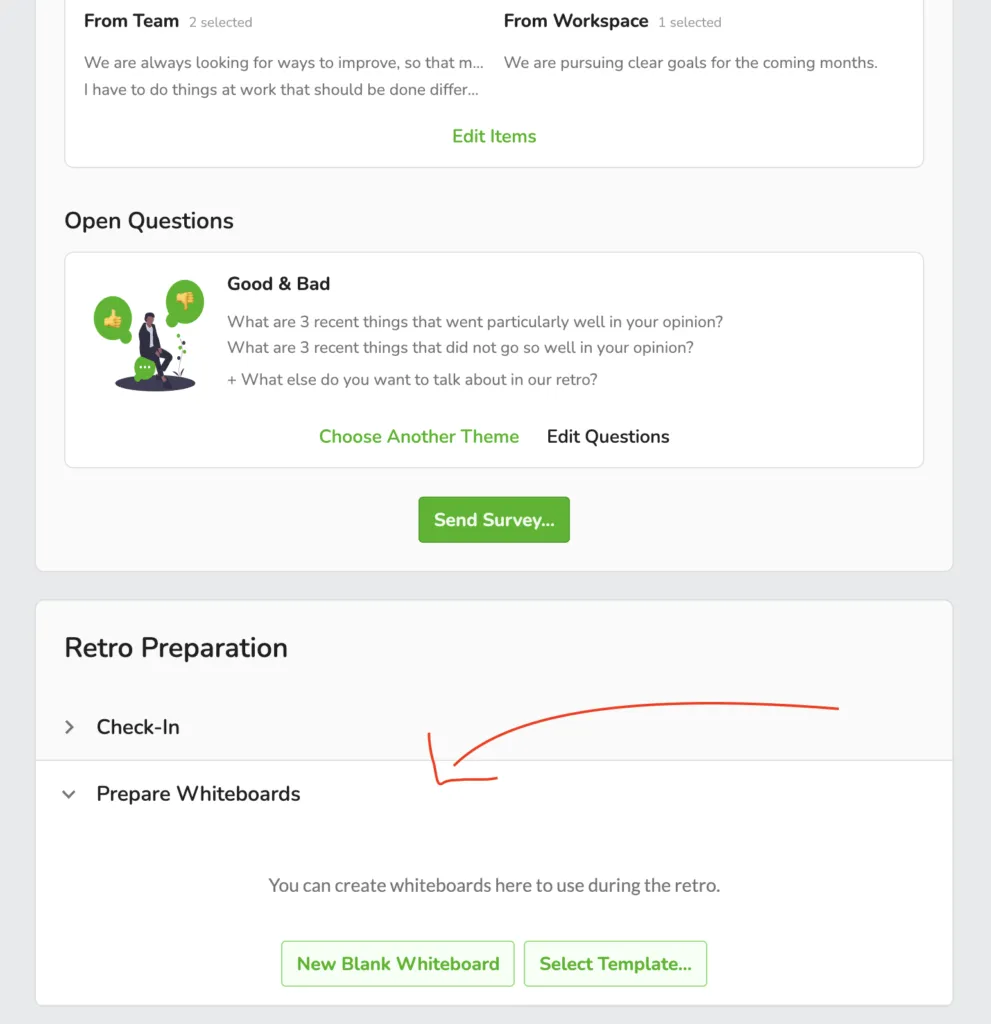
If you select a whiteboard template, a copy of the template will be created for the upcoming retro. The whiteboard template itself is not changed.
Open whiteboards in the retro
As a moderator in a retrospective, you can easily open the prepared whiteboards and whiteboard templates via the whiteboard symbol at the bottom right:
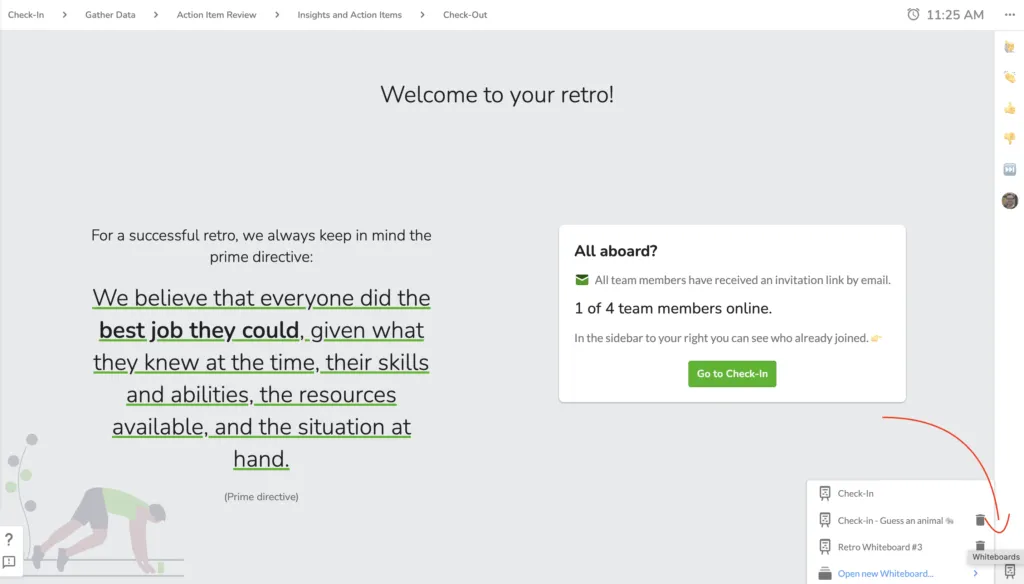
Alternatively, you can also select an item on the retro canvas and create a whiteboard linked to it. The selected feedback is automatically inserted on this whiteboard:
